Adding and Editing Suppliers in Arda Legacy
Last updated: January 29, 2026
This article explains how to set up suppliers in Arda Legacy. You will learn how to access supplier tables, edit existing suppliers, and add new ones linked to your inventory.
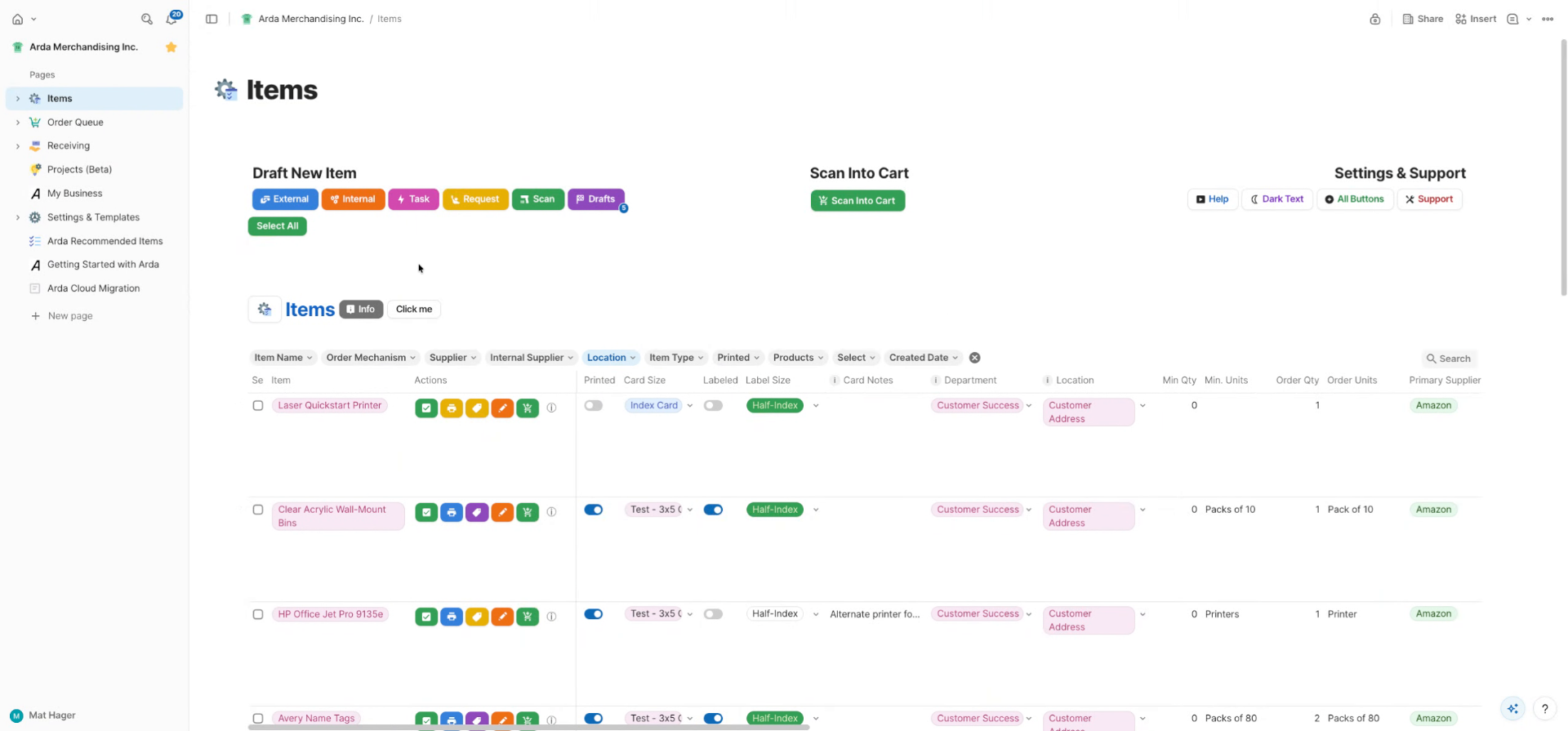
1. Navigate to Left Side Navigation
To set up suppliers on Arta Encoder, go ahead and come over to the left side navigation screen.
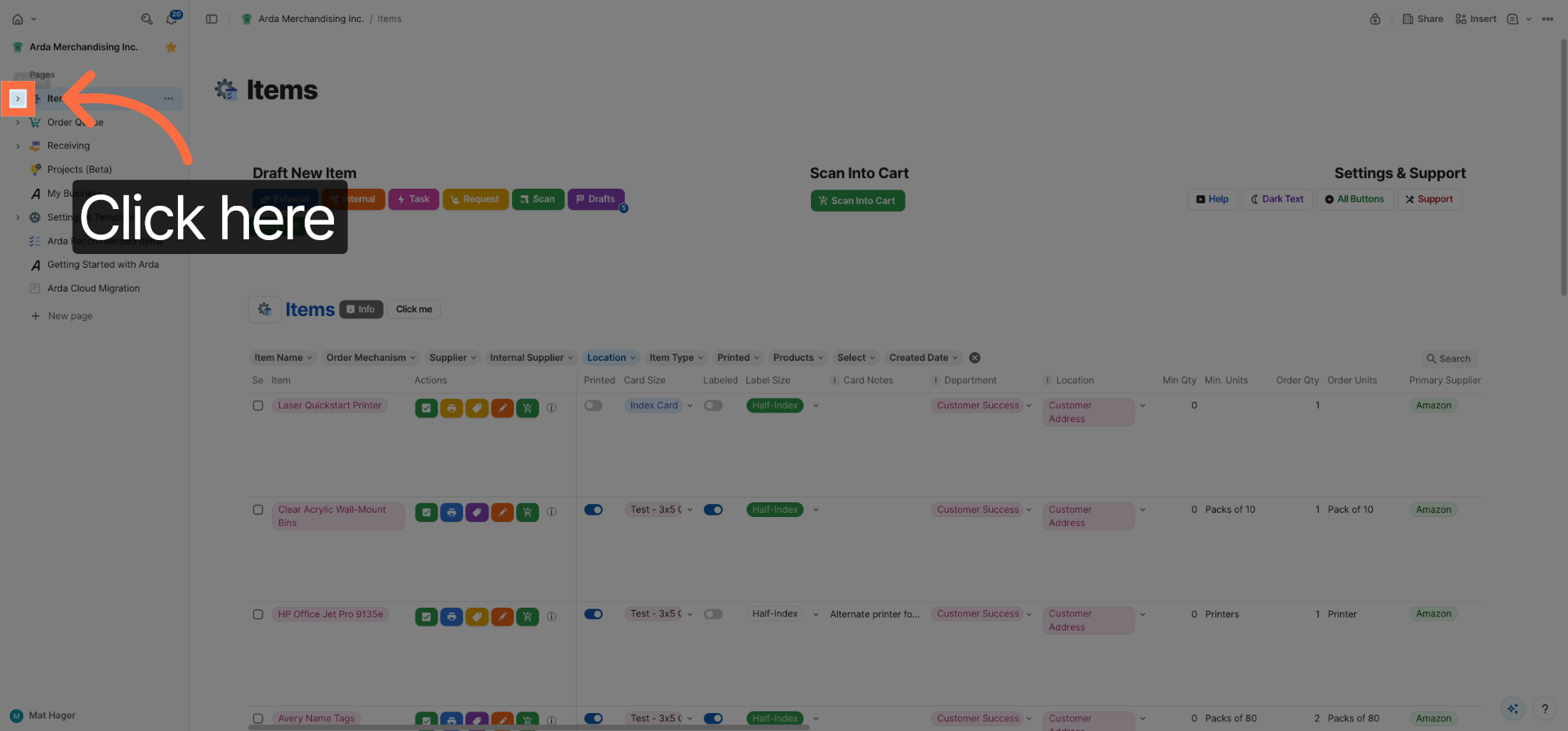
2. Access Items Section
Click the Items section to begin managing your supplier-related data within the Coda workspace.
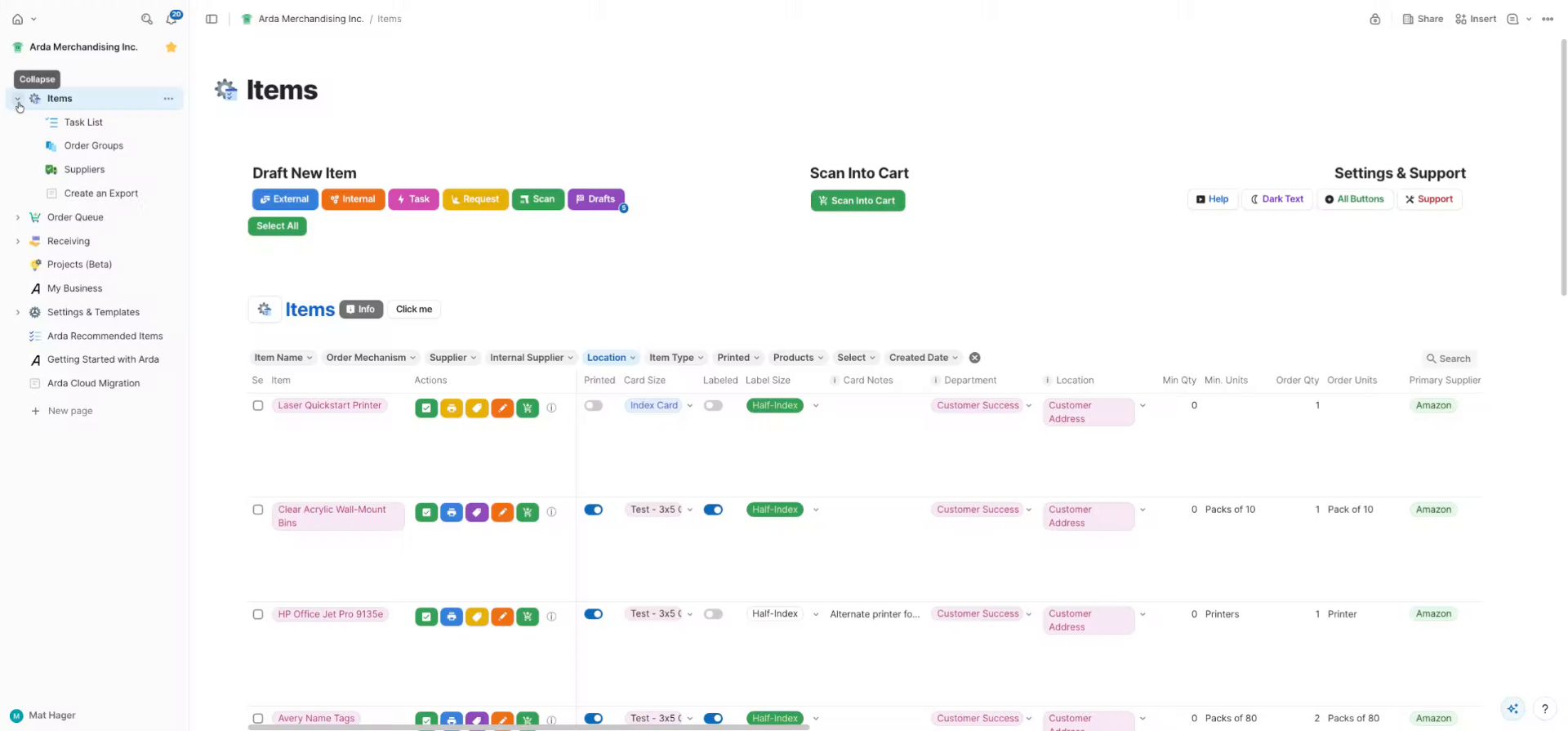
3. Select Suppliers from Dropdown
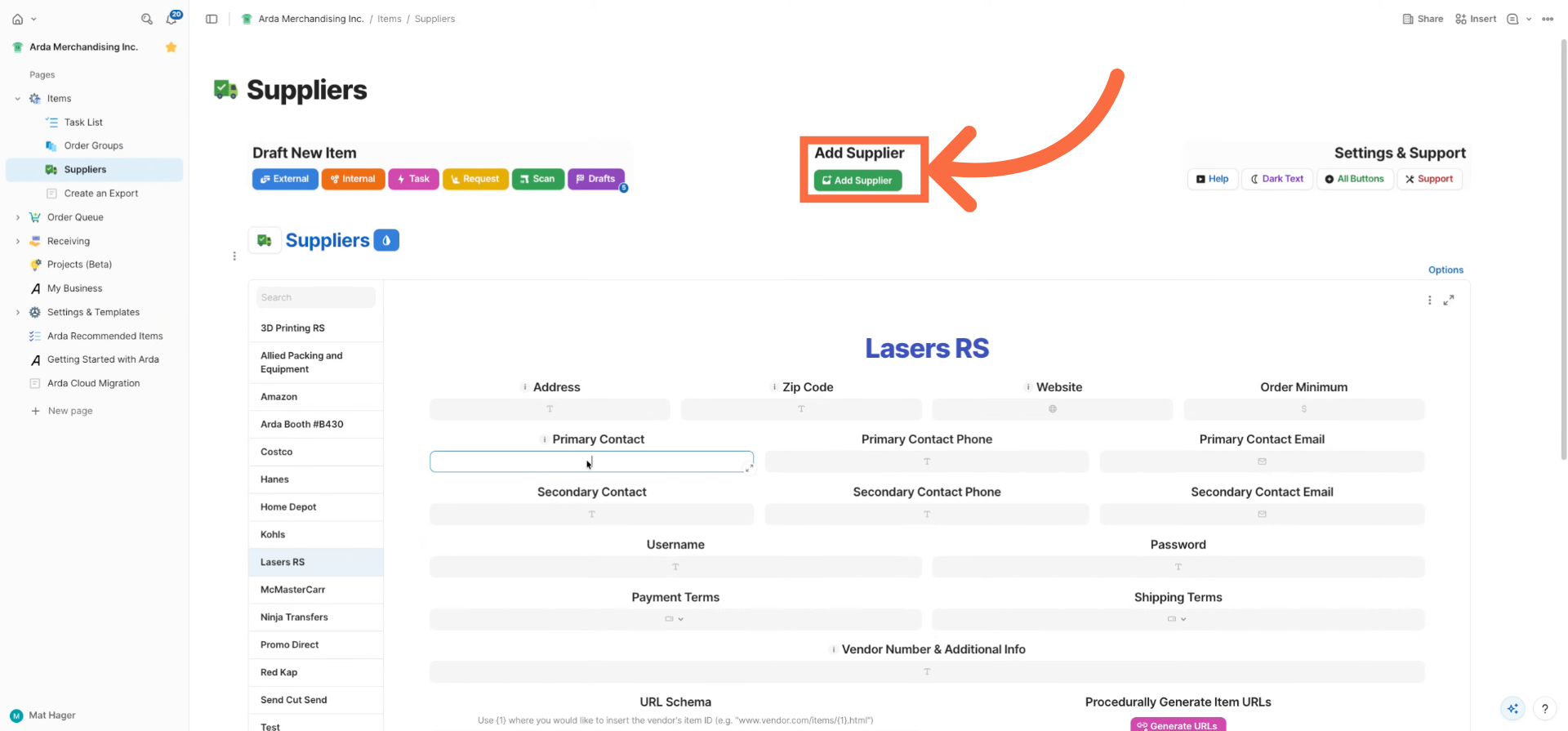
Select this down caret, and then hit suppliers. From here, you'll see your suppliers tables. If you'd like to edit a supplier that exists, we could come in and find the supplier.
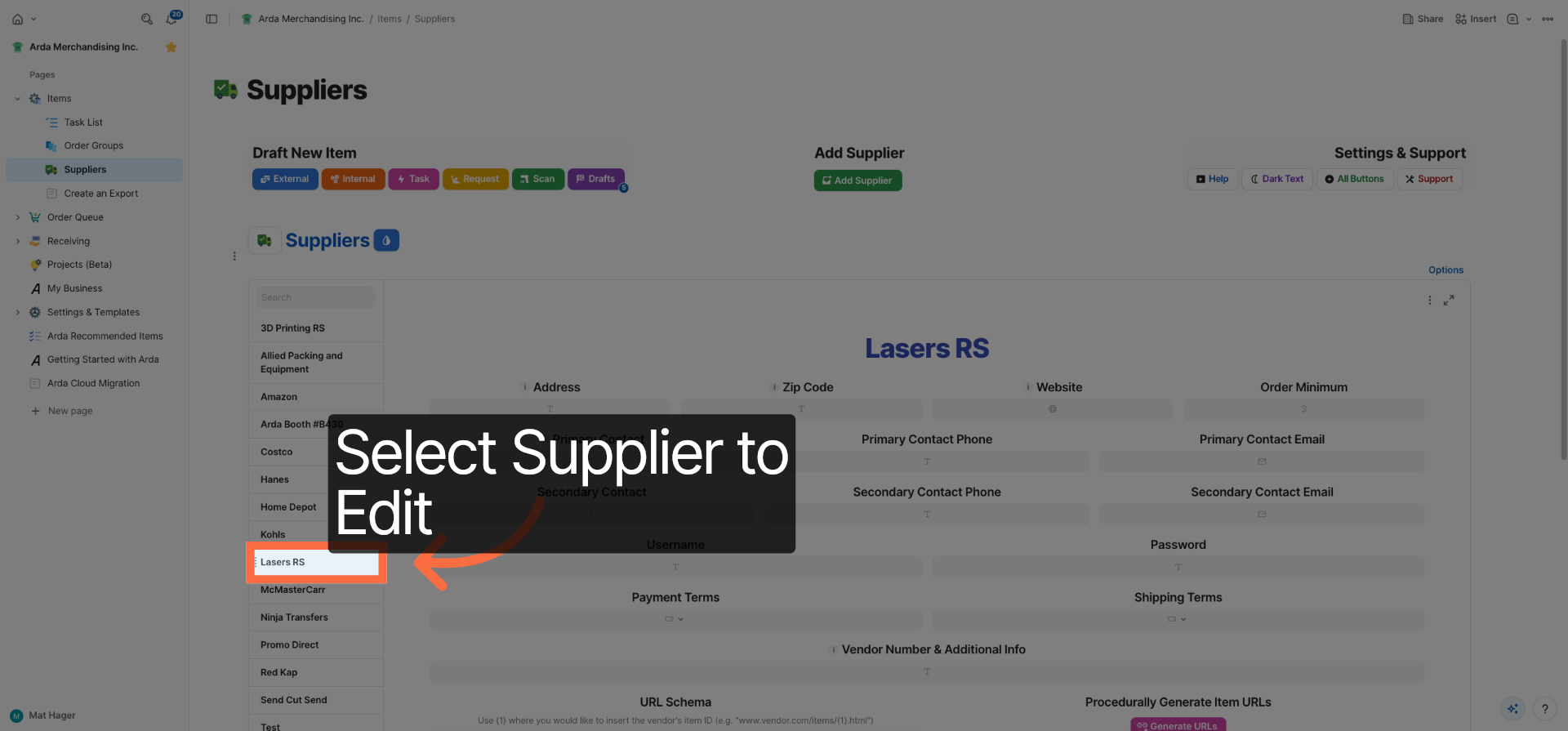
4. Choose a Supplier to Edit
Select a supplier from the list to view and modify their details as needed. Add any details that they might have
5. Add or Update Supplier Details
If you'd like to add a new supplier, select add supplier and enter their details.
This article guided you through setting up and managing suppliers in Arda on Coda, including navigating to supplier tables, editing existing suppliers, and adding new ones linked to your items. For more information, refer to related articles on supplier management and inventory integration.