Tutorial: Printing Cards and Labels
Last updated: January 26, 2026
In this tutorial, you’ll learn how to print cards and labels in the Arda system — both individually and in bulk. We’ll go step-by-step through selecting sizes, choosing templates, and using print settings. You’ll also learn how to set default print sizes and apply color coding for easy item recognition.
Prerequisites
Access to your Arda Instance
At least one card or label item created in your workspace
Printer connected and configured (https://www.loom.com/share/3bea51bba54045d9a919fb9e11717538)
Steps
1. Printing a Single Card
Go to your Items view.
Locate the Card Size column and click a row to view available size options.
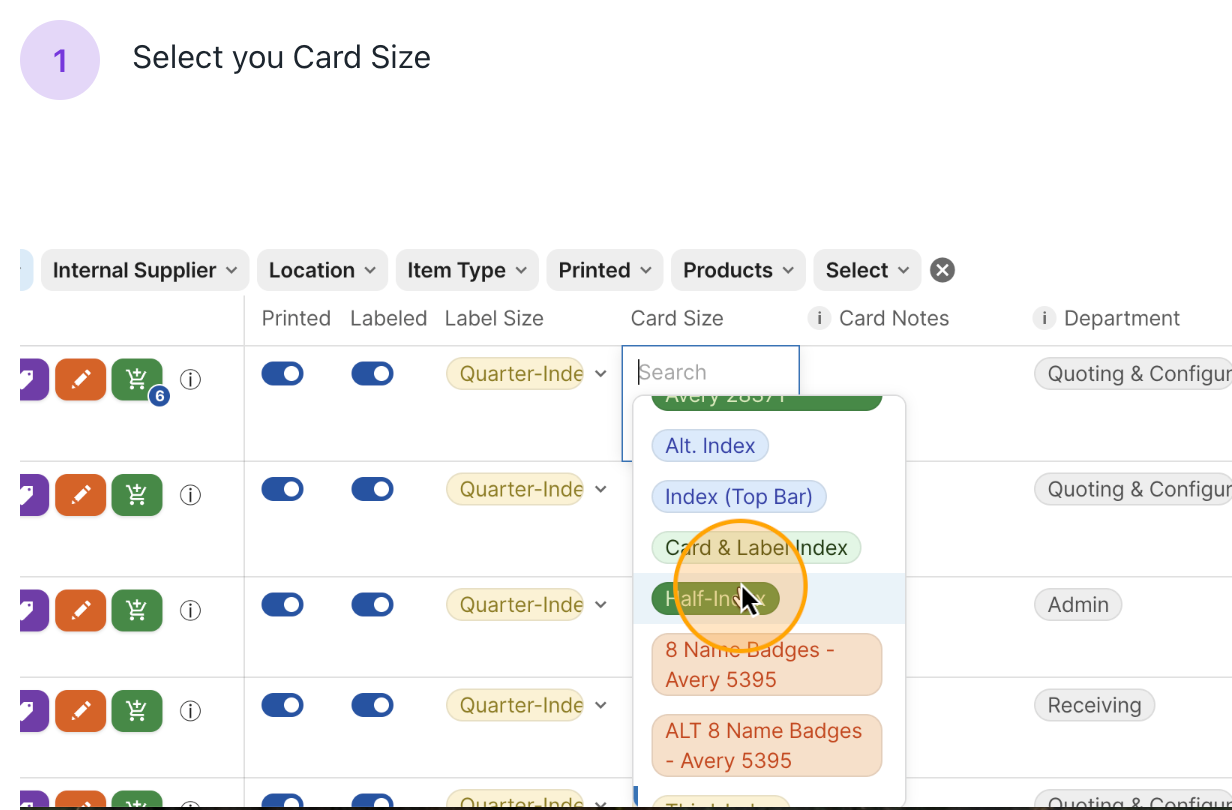
Select your desired size (e.g., Half - Index Card).
In the Actions column, click the Print icon.
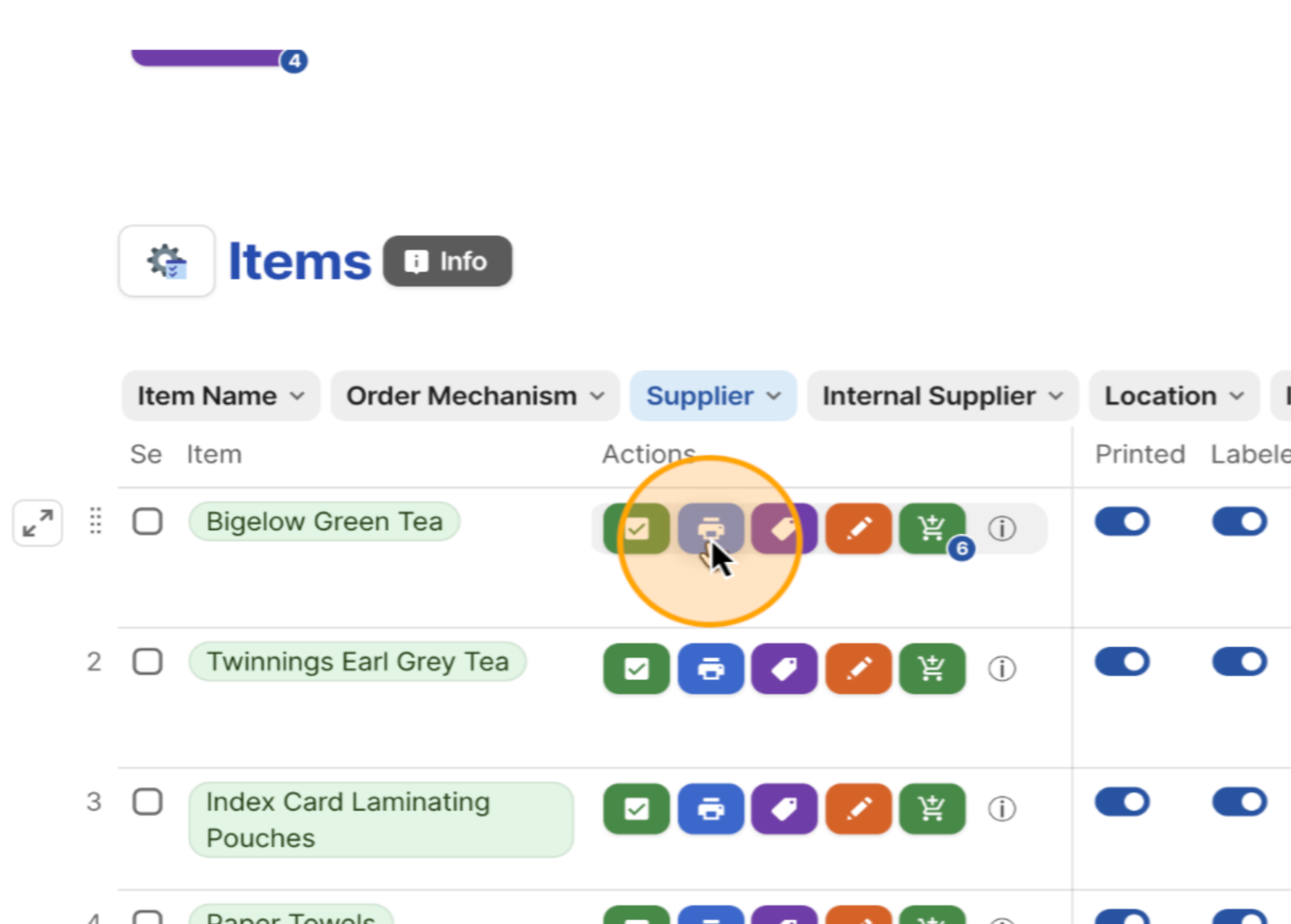
Wait a moment — your card will open in the selected size, ready to print.
2. Printing Multiple Cards in Bulk
In the Select column, check the boxes for the cards you want to print.
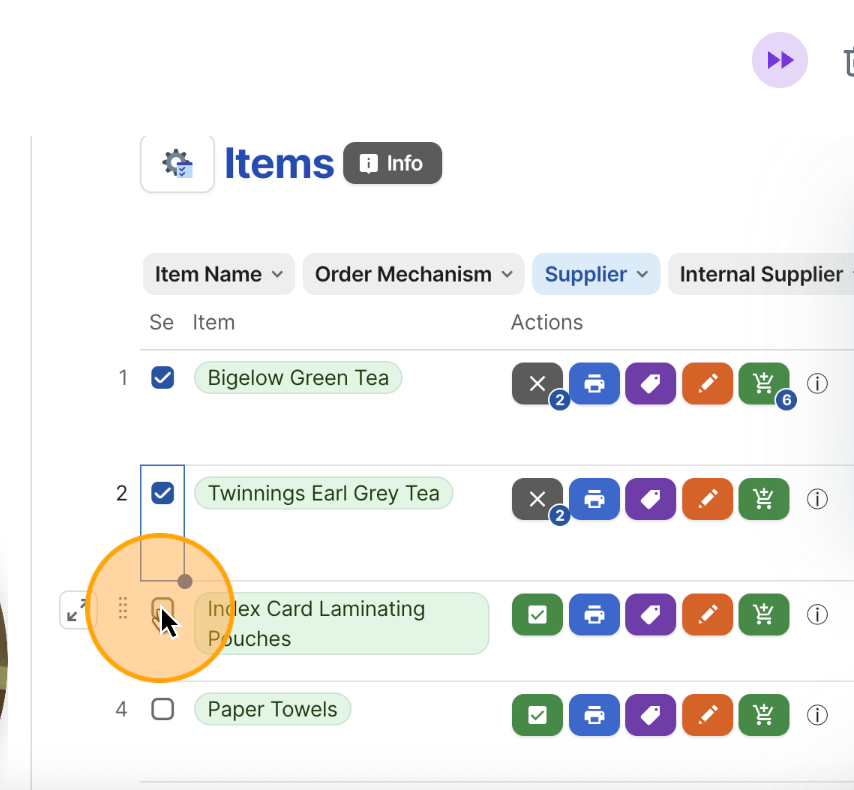
Choose your card size from the Card Size column.
Click the Print icon.
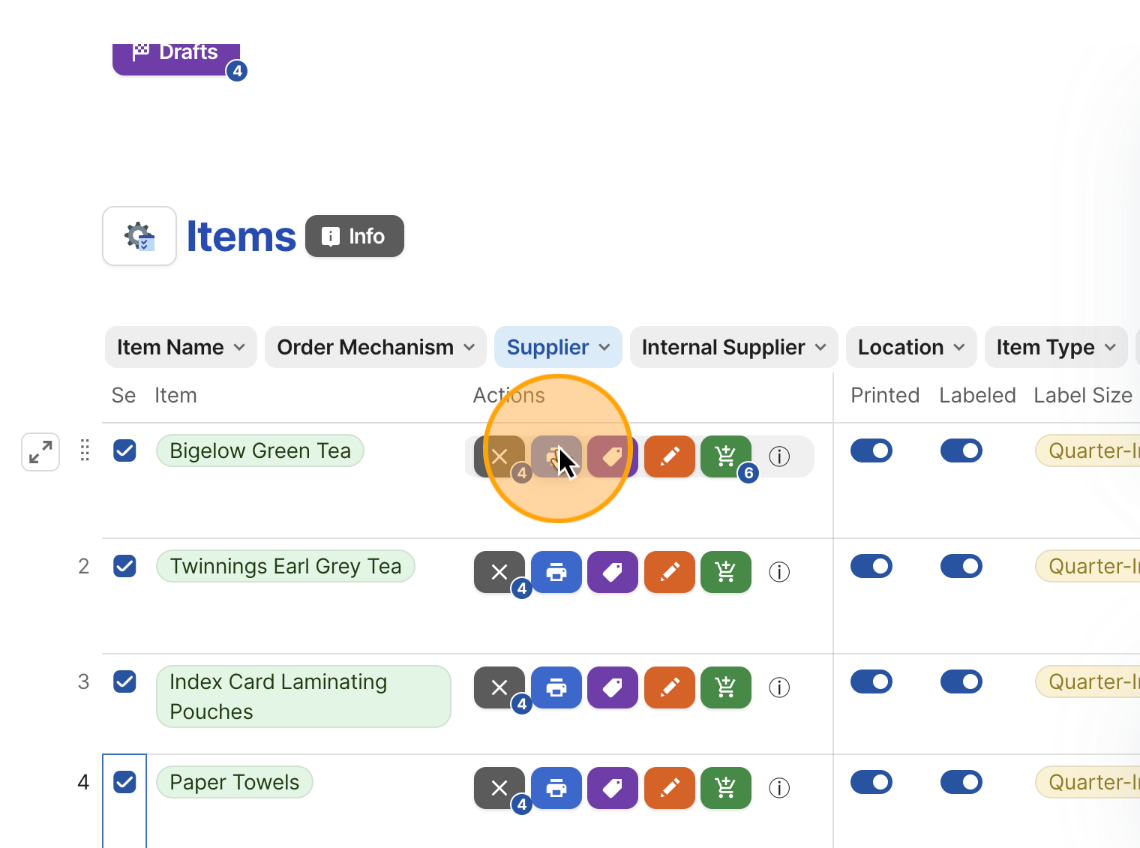
The system will generate all selected cards in the chosen format.
Tip: If you’re using Avery bulk templates (e.g., Business Cards, Name Badges), select at least two items for printing to work.
3. Printing Labels
Navigate to your Labels view.
Select a size from the Label Size column.
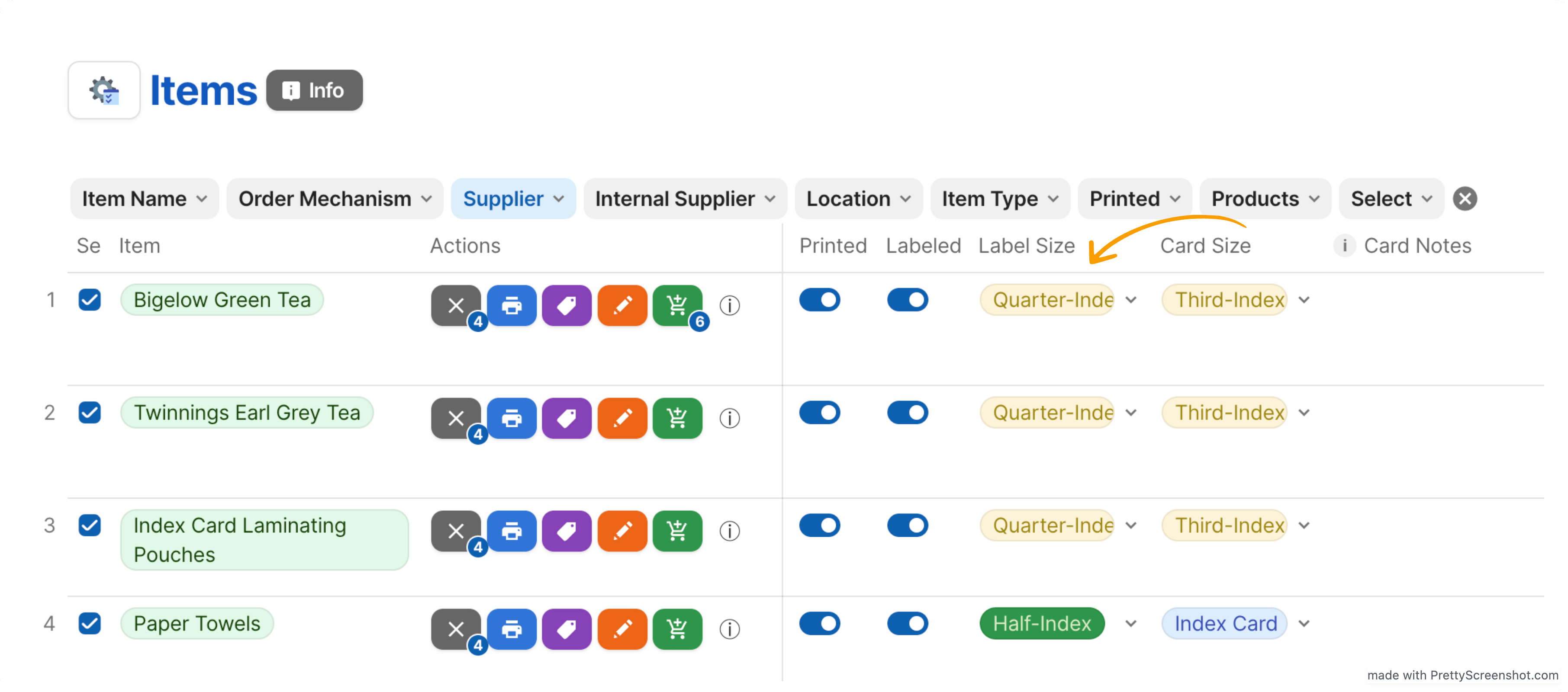
Choose Individual or Bulk mode.
Click the Label button (purple icon).
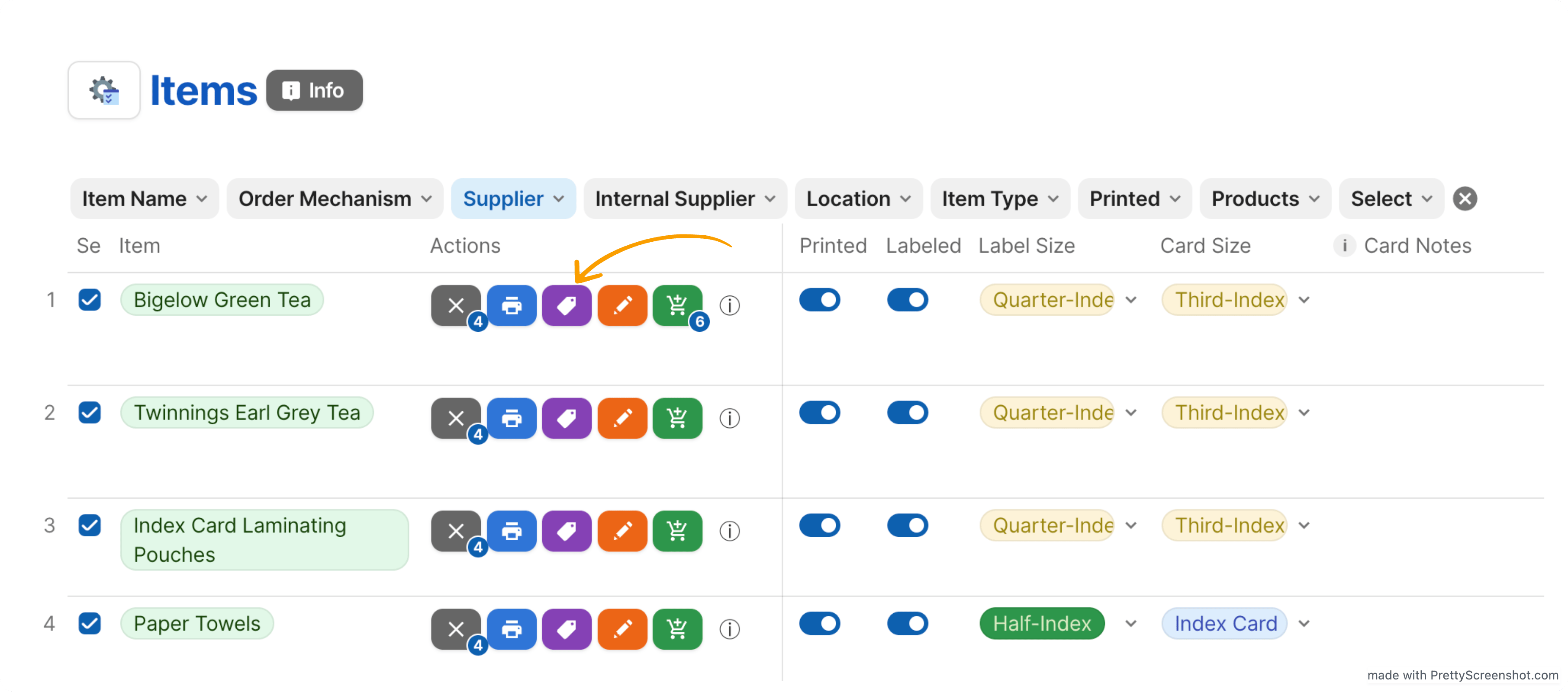
Your labels will be generated in the chosen size.
4. Adjusting Default Print Settings
Go to Settings & Templates.
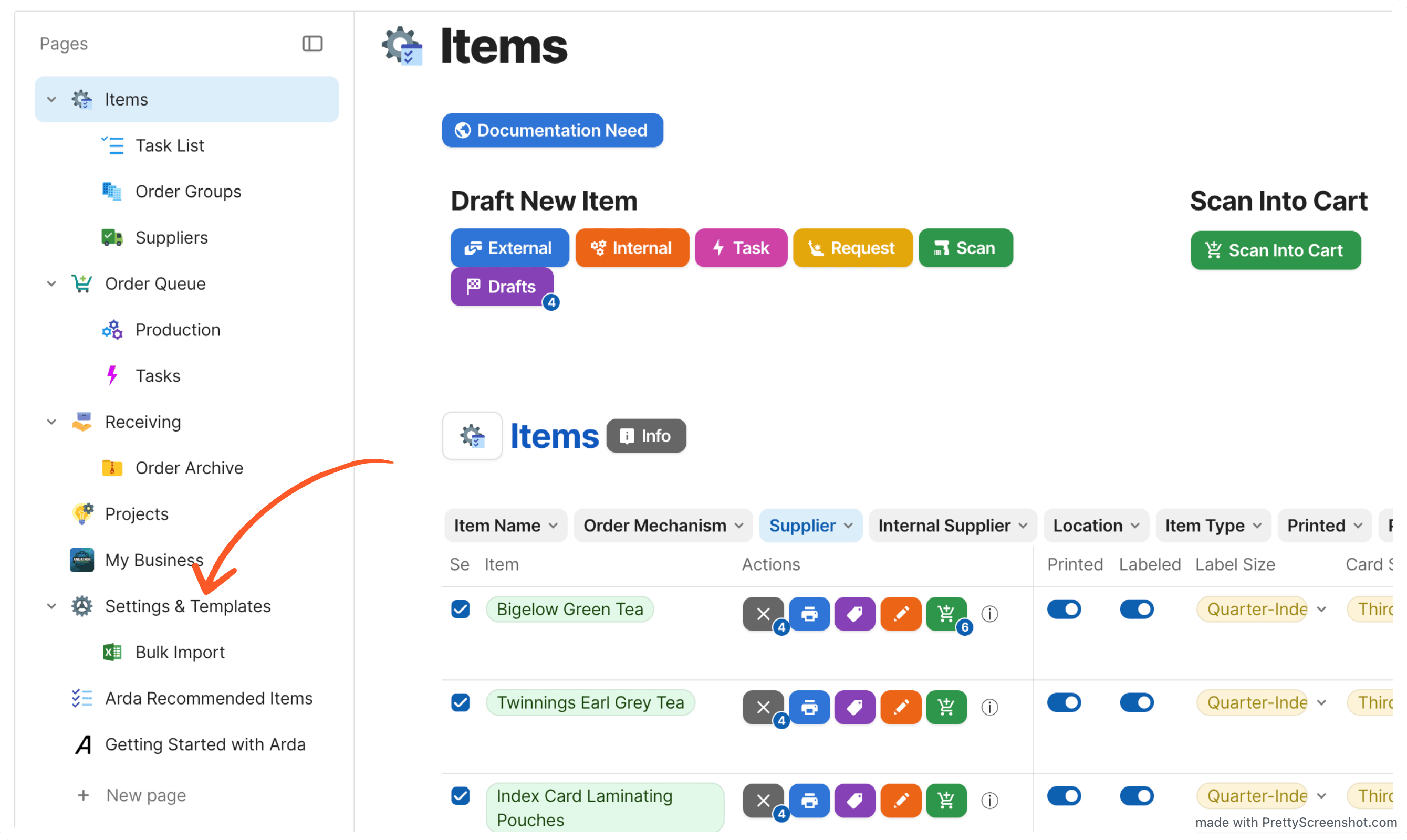
Default Card Size (e.g., Index, Half Index, Business Card)
Default Label Size (e.g., Half Index)
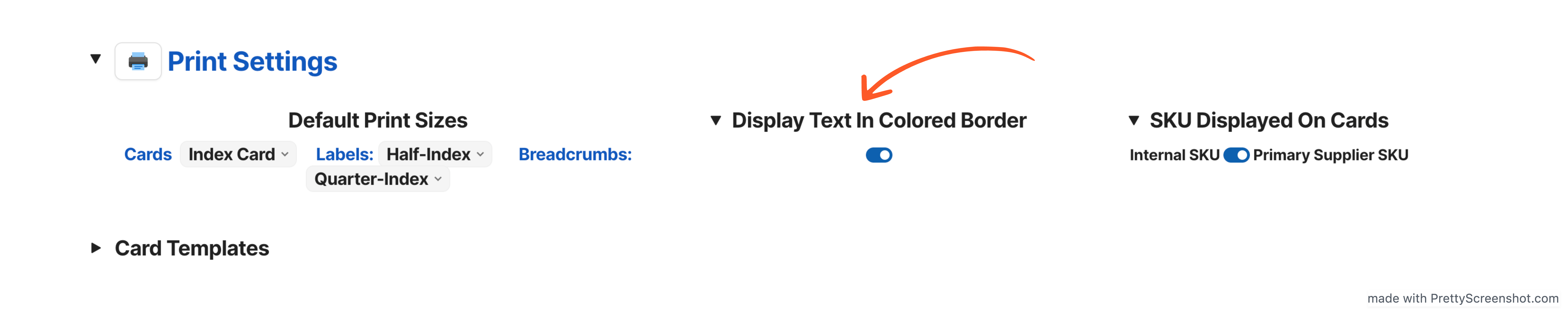
Under Print Settings, set:
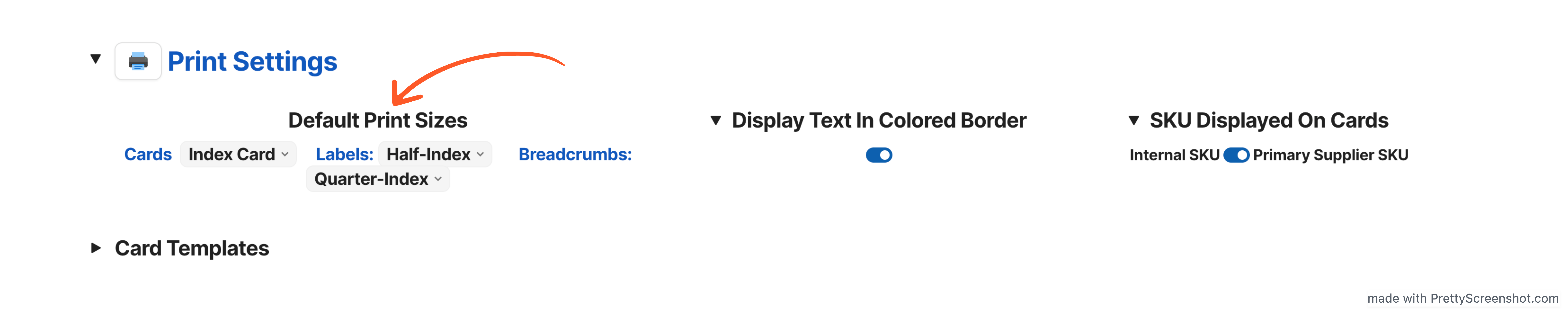
Optional: Toggle whether to show colored text inside the border.
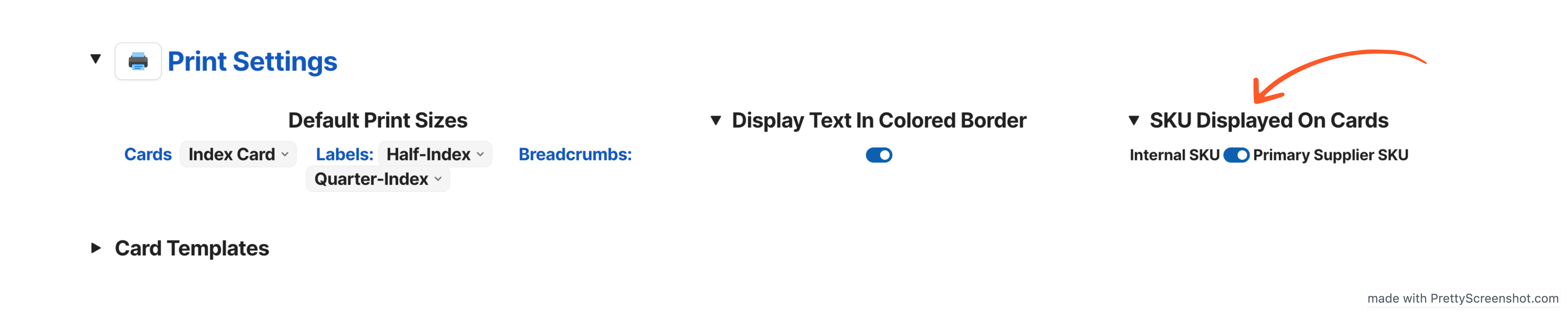
Choose whether to display Internal SKU or Primary SKU.
5. Configuring Color Coding
In Settings & Templates, open Color Coding Options.
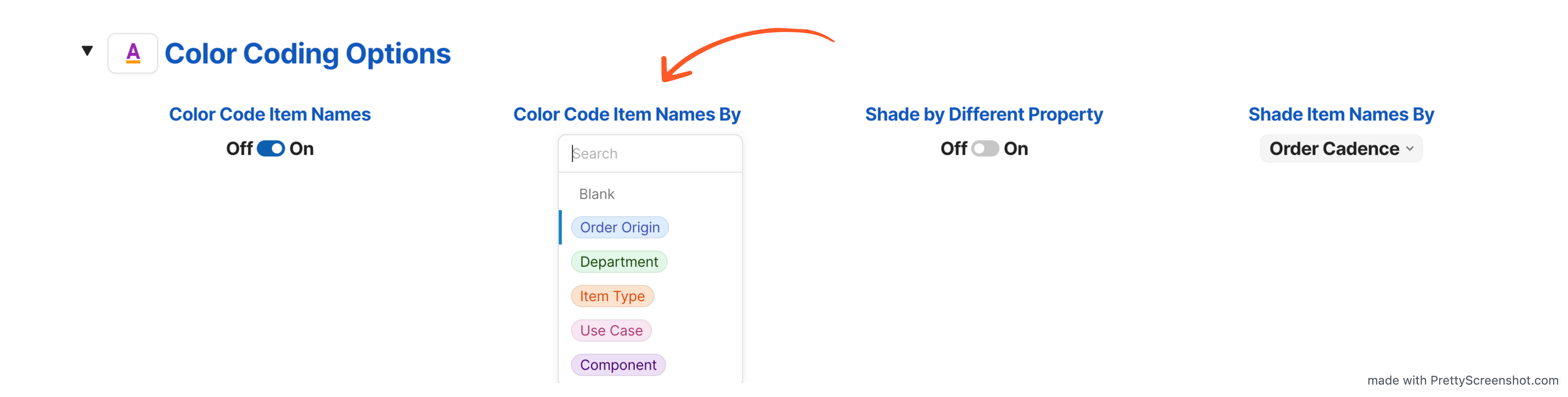
Choose how items are color-coded:
Order Origin (default)
Use Case
Item Type
Component
Department
The selected option will determine the color scheme on your printed cards and labels.
Summary
You’ve learned how to:
Print single and bulk cards
Print single and bulk labels
Set default print sizes for cards and labels
Customize SKU display and border text
Apply color coding for quick identification
With these steps, you can efficiently manage printing in Arda, ensuring consistency and clarity in your inventory workflow.