Tutorial: Creating Item Types, Subtypes, and Use Cases
Last updated: January 26, 2026
This tutorial will guide you through creating Item Types, Item Subtypes, and Use Cases in your Arda workspace. These classifications help keep your inventory organized, speed up production workflows, and make material flow more predictable. You’ll learn how to build these from scratch, assign colors, and keep them structured for easy searching.
Prerequisites
Access to your Arda workspace in Coda
A basic understanding of your organization’s inventory categories
Steps
1. Create Item Types
Open the Item Types table in your Arda workspace.
Add each broad category your inventory needs. Examples:
Component
Consumable
Tooling
Material
Office Supplies
Assign a color to each Item Type to visually separate categories.
2. Add Item Subtypes
In the Item Subtypes column, click into an empty cell.
Select Add New to create a new subtype.
Example: Under Component, add Hardware.
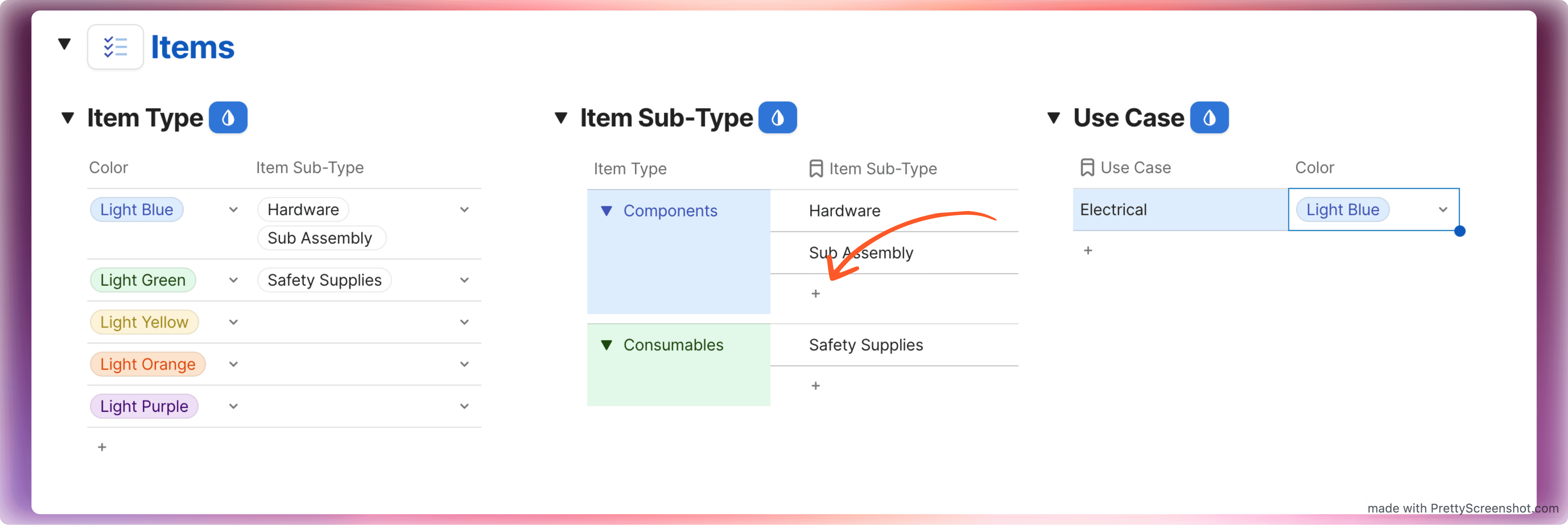
Or
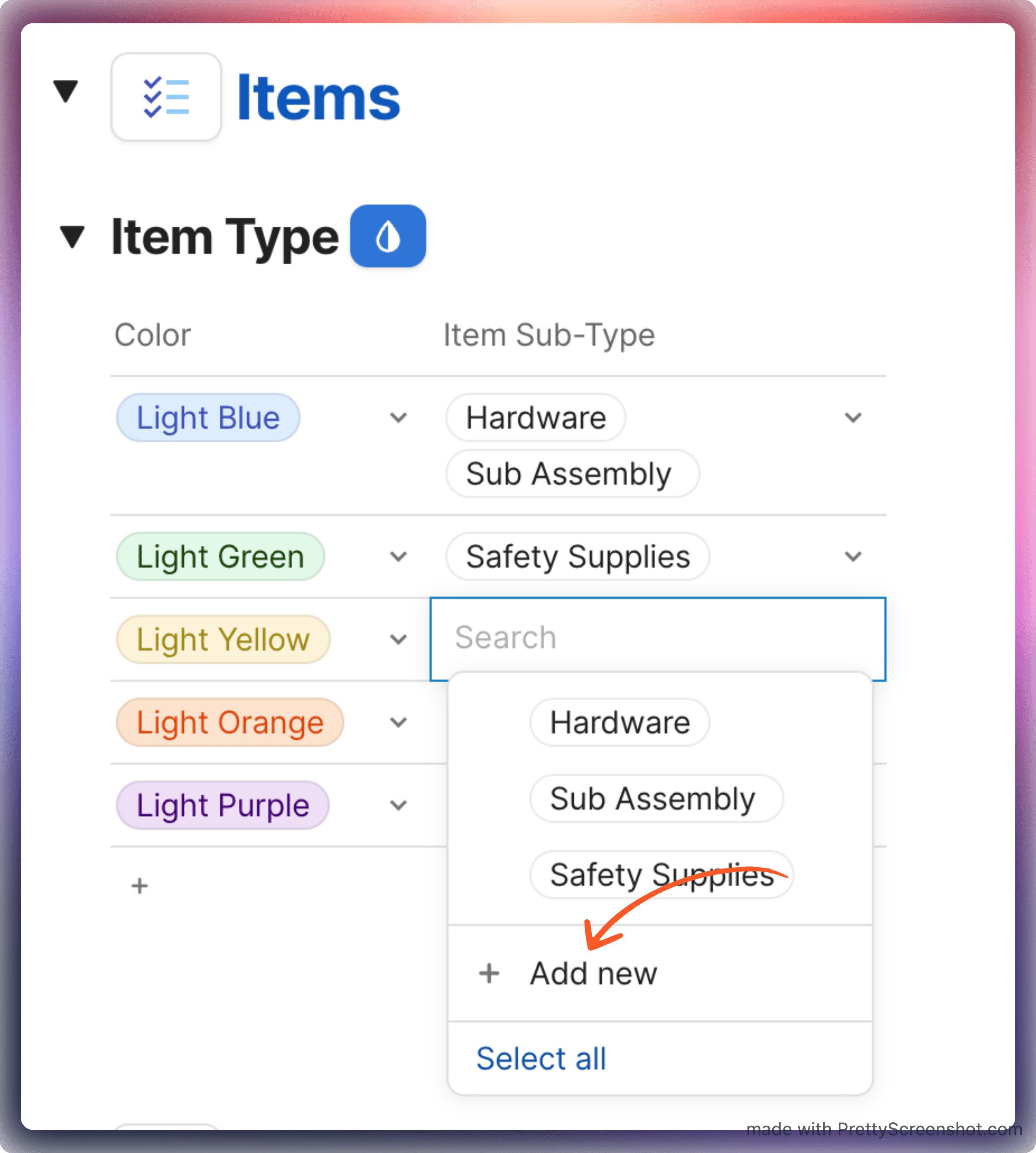
Check the Item Subtypes table to confirm they are linked to the correct Item Type.
3. Create Use Cases
Open the Use Cases table.
Click the Plus (+) New Row button.
Enter a descriptive name for how the item will be used.
Example: Electrical
Assign a color for easy identification in workflows.
Repeat as needed to cover your primary workflows or production processes.
Summary
By completing this tutorial, you have:
Defined broad Item Types for your inventory
Created specific Item Subtypes to allow better filtering
Added Use Cases that link items to their practical application
This setup ensures that everyone in your organization can quickly find, categorize, and use inventory items without confusion.