Tutorial: Creating Your First Items in Arda
Last updated: January 26, 2026
Learn how to add external items to your Arda Instance using four different methods: manual data entry, Amazon URL import, Amazon search, and scanning a UPC. This tutorial will guide you step-by-step so you can quickly populate your items table.
Prerequisites
Access to your Arda.cards workspace
Navigation to the Items Table
External item details such as name, source link, UPC, or search keywords
A scanner for UPC method (optional)
Steps
1. Adding an External Item Using Manual Data Entry
From your Items Table, click External Items.
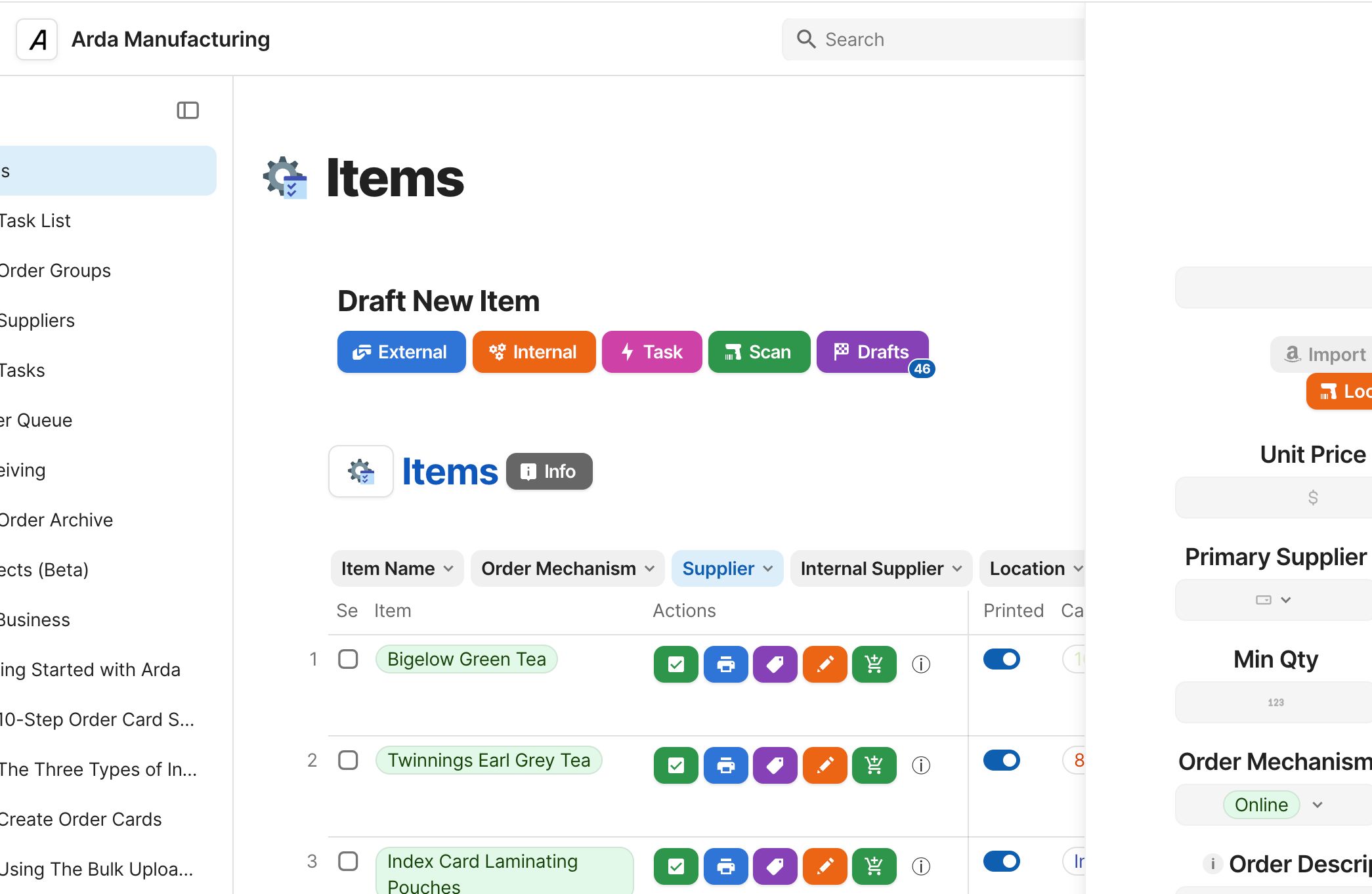
Figure 1.1 – Navigating to External Items from the Items TableTip: Switch to Fewer Options view for a simpler layout.
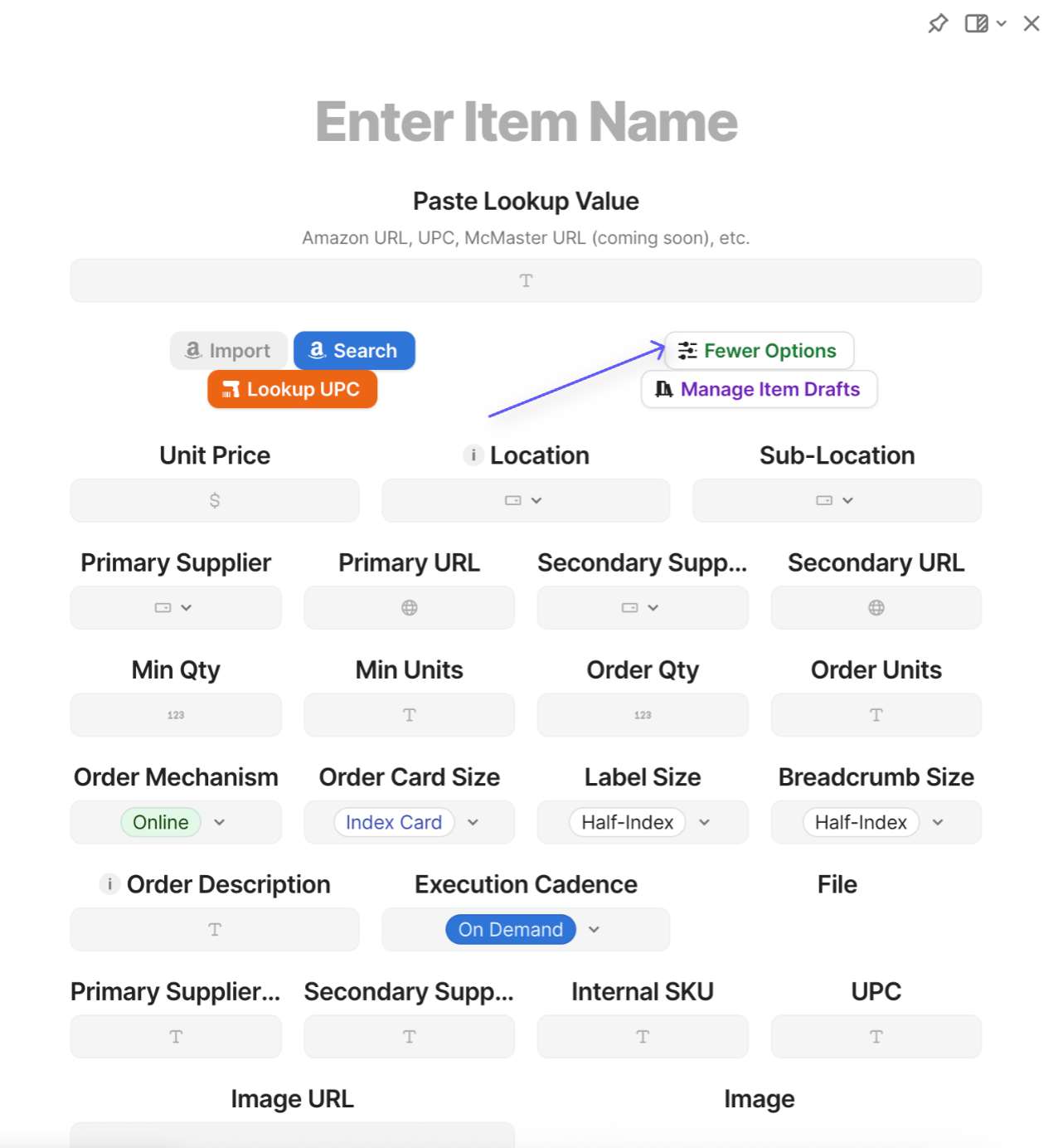
Figure 1.2 – Switching to Fewer Options viewIn the Name field, type the item name (e.g., Box Knives).
Fill in item details — purchase source, quantity, and other relevant fields.
If you have an image URL, paste it into the Image URL field.
Choose Create (Create & Add Another or Create & Print) when complete.
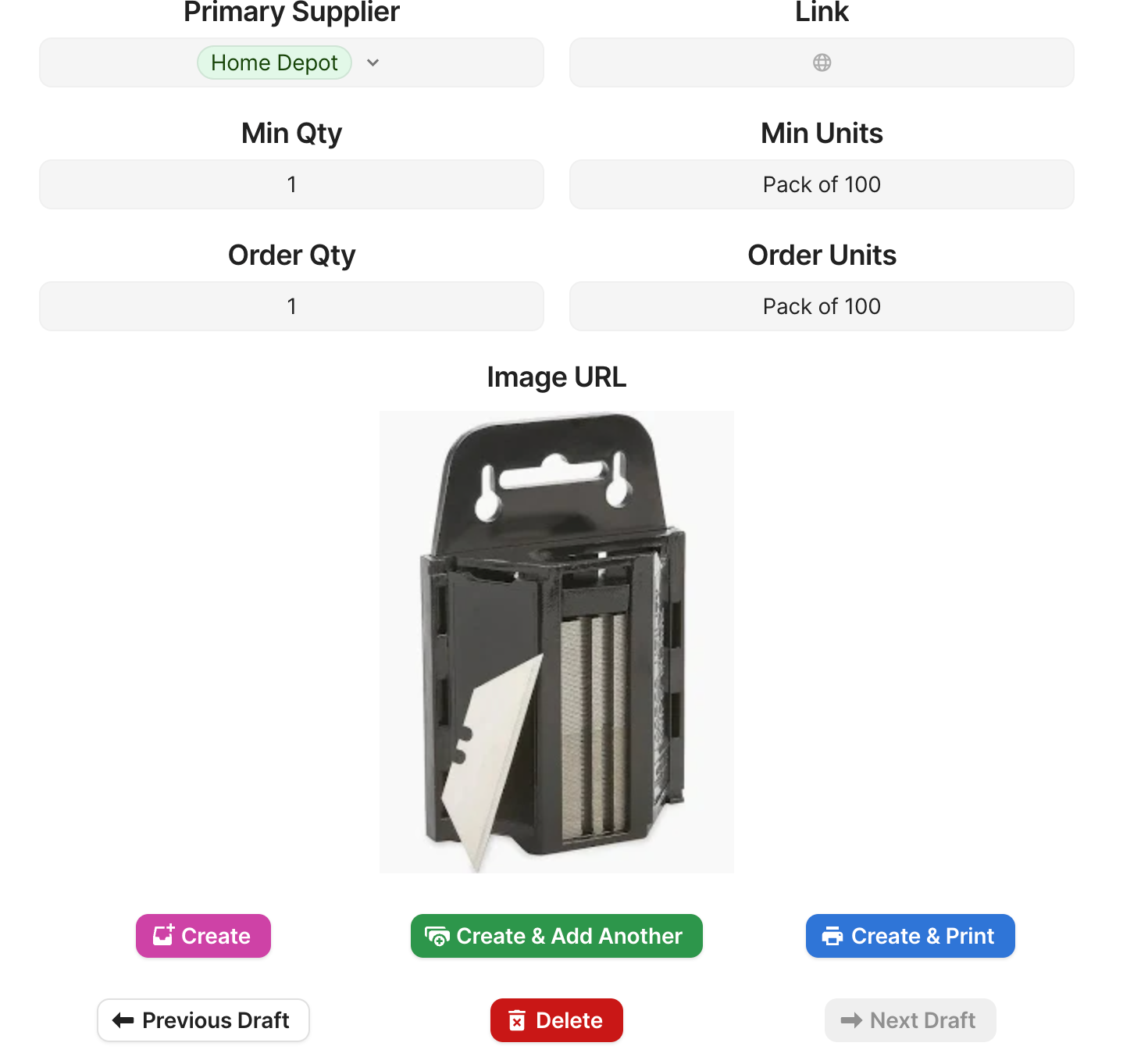
Figure 1.3 – Finalizing creation of a manually entered item
2. Adding an External Item by Scanning a UPC
In the External Items view, click into the UPC field.
Scan the item’s UPC barcode using your scanner.
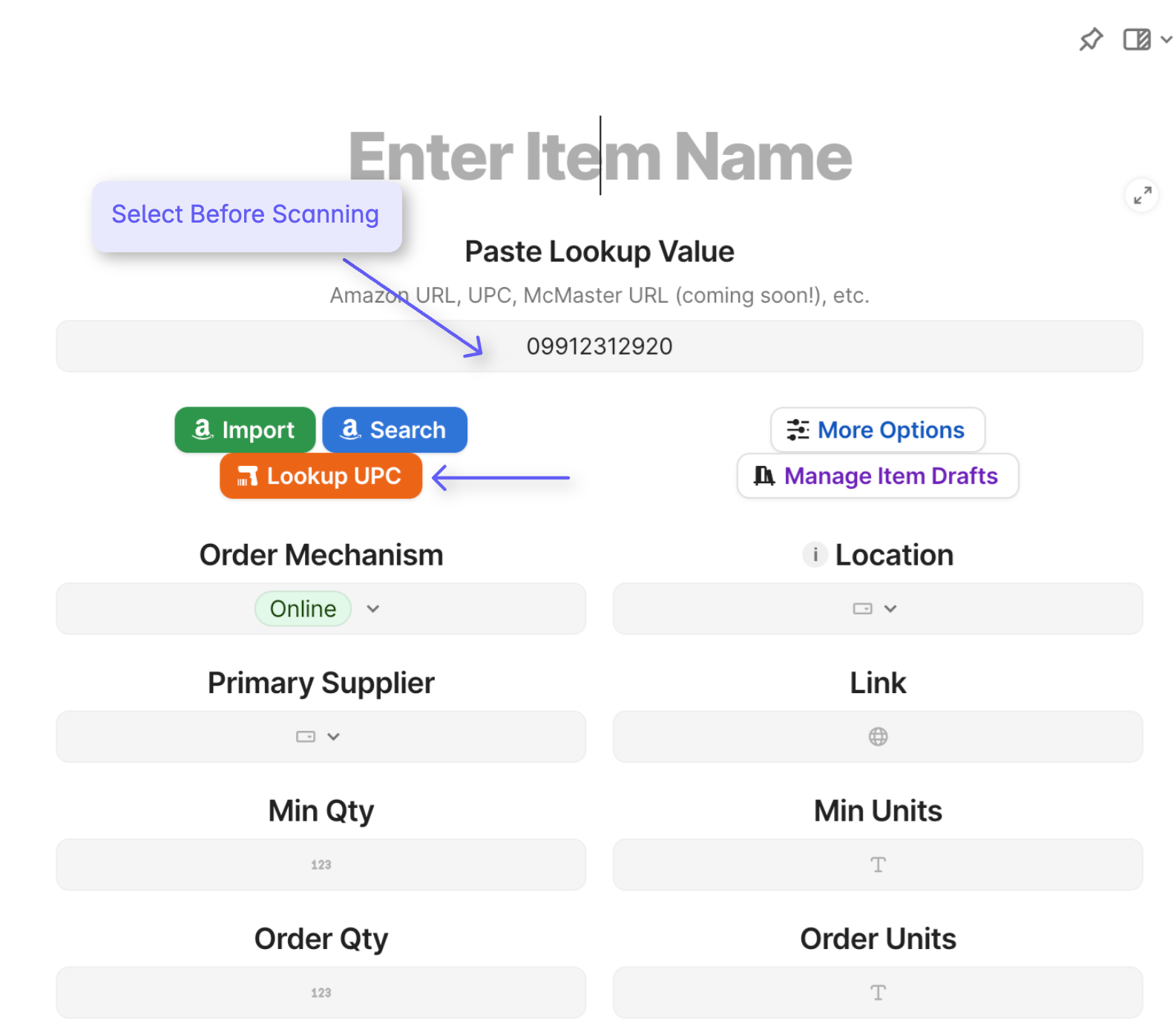
Figure 1.4 – Scanning a UPC into the External Items viewThe system will automatically populate the UPC field and retrieve the product details.
Review the details and click Create to finalize.
3. Adding an External Item Using an Amazon URL
In the External Items view, locate the Amazon Link field.
In Amazon, find the product you want to add (e.g., Box Knife Blades).
Copy the product URL from your browser.
Paste the URL into the Amazon Link field.
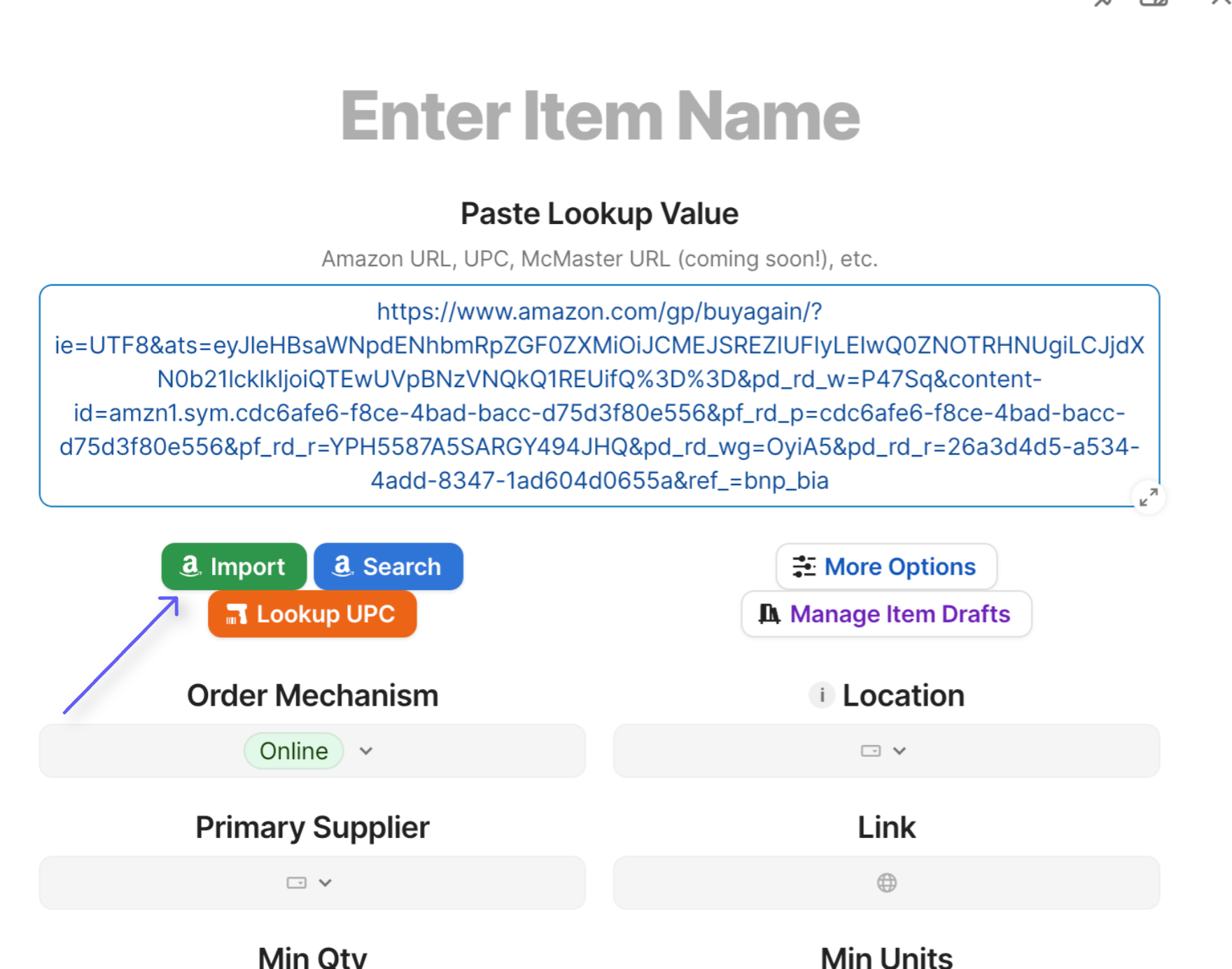
Figure 1.5 – Pasting an Amazon product link into the Amazon Link fieldClick Import — Arda.cards will pull in product data automatically.
Shorten the product name if needed (e.g., change long SEO title to Dried Apricots).
Assign a Location (e.g., Office), then click Create.
4. Adding an External Item Using Amazon Search
In the External Items view, locate the Amazon Search field.
Enter a keyword for the item you want (e.g., Box Knife Blades).
Wait for results to appear, sorted by price per ounce.
Select the item you want and click Add.
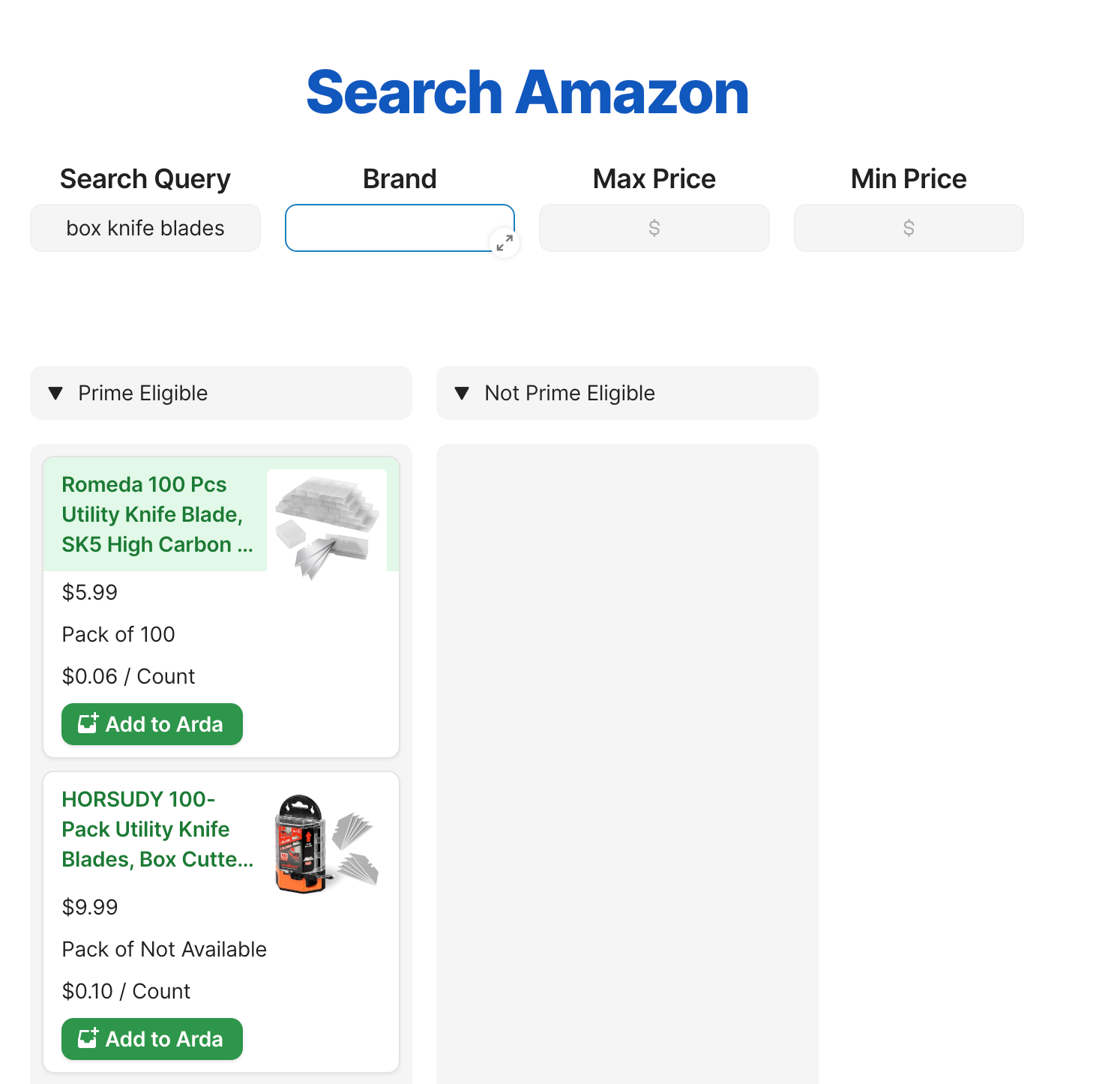
Figure 1.6 – Selecting an item from Amazon search resultsThe new item is now added to your table.
Summary
You’ve learned how to add external items in Arda using:
Manual data entry
Scanning a UPC
Importing via Amazon URL
Searching Amazon from within Arda
By using the method that best fits your situation, you can keep your inventory up-to-date efficiently. If you'd like to bulk import items. See the tutorial Bulk Importing and Updating Items.