Tutorial: Placing Orders in Arda
Last updated: January 26, 2026
This tutorial will guide you through placing orders in Arda after items have been added to your cart. We’ll walk through online orders, in-store purchases, email orders, and quote requests so you can complete any order workflow from start to finish.
Prerequisites
Before starting, ensure you:
Have items already added to your cart (see the Adding Items to Cart tutorial).
Have configured email (see how to configure email)
Steps
1. Access Your Order Queue
Navigate to your Order Queue in Arda.
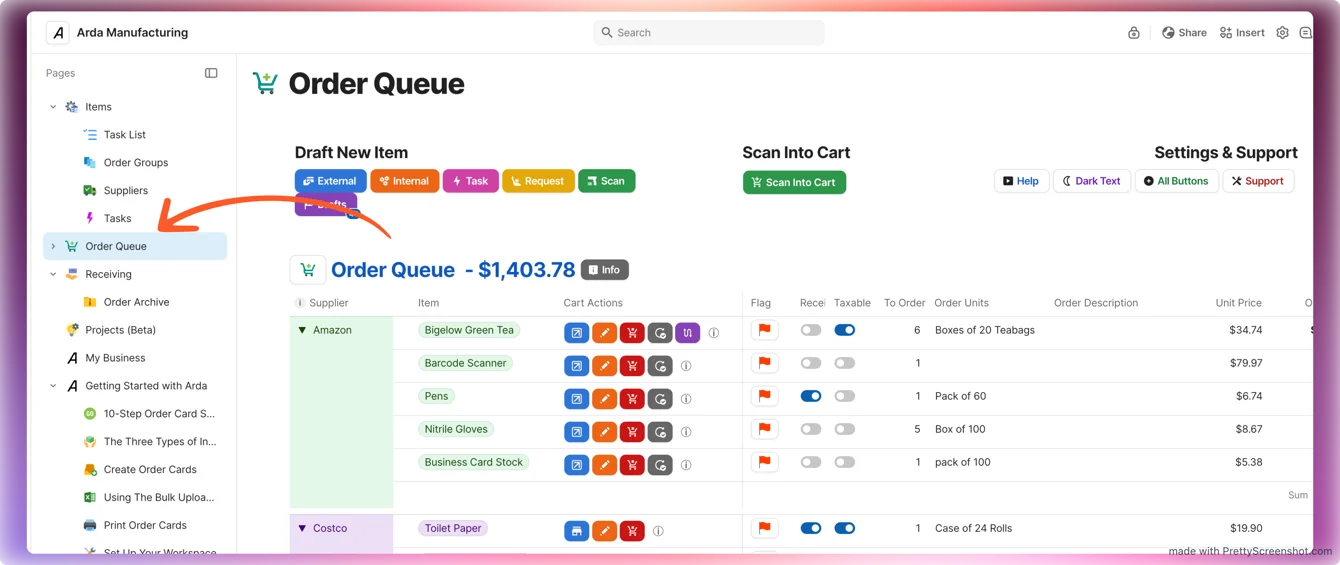
You’ll see items grouped by supplier, each with its own order mechanism.
2. Place an Online Order
Select an online order supplier (e.g., Amazon).
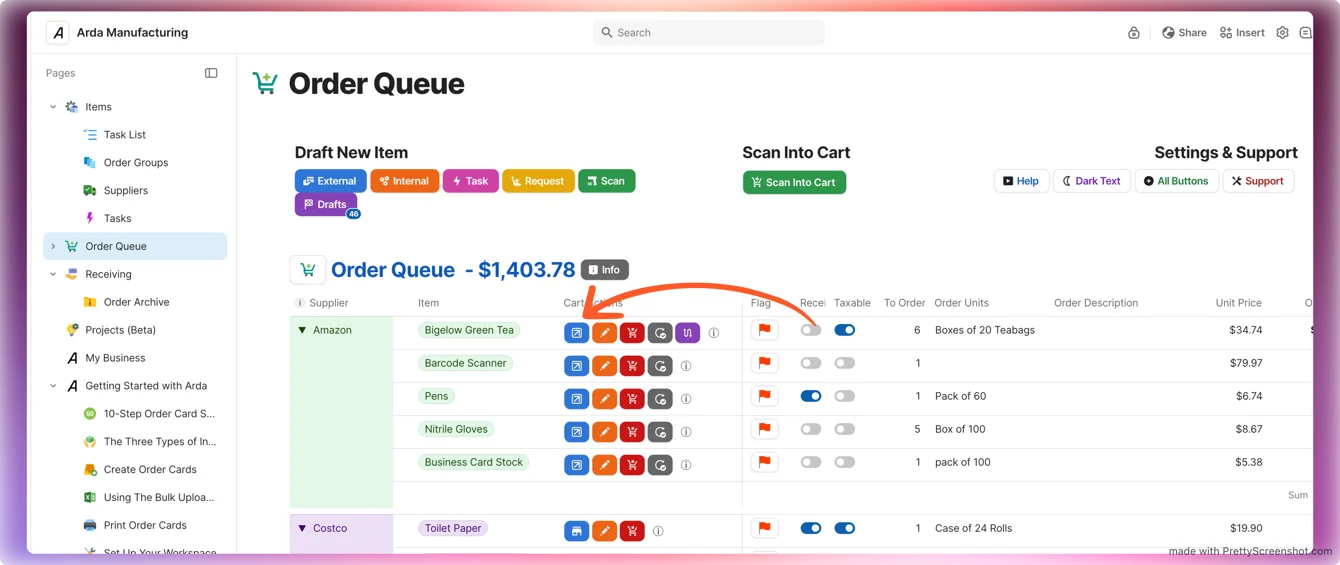
This opens your cart on the supplier’s website.
Complete the checkout process on their site.
Once purchased, items will disappear from the order queue and appear in your Receiving Queue.
3. Record an In-Store Purchase
Open the order on your mobile device.
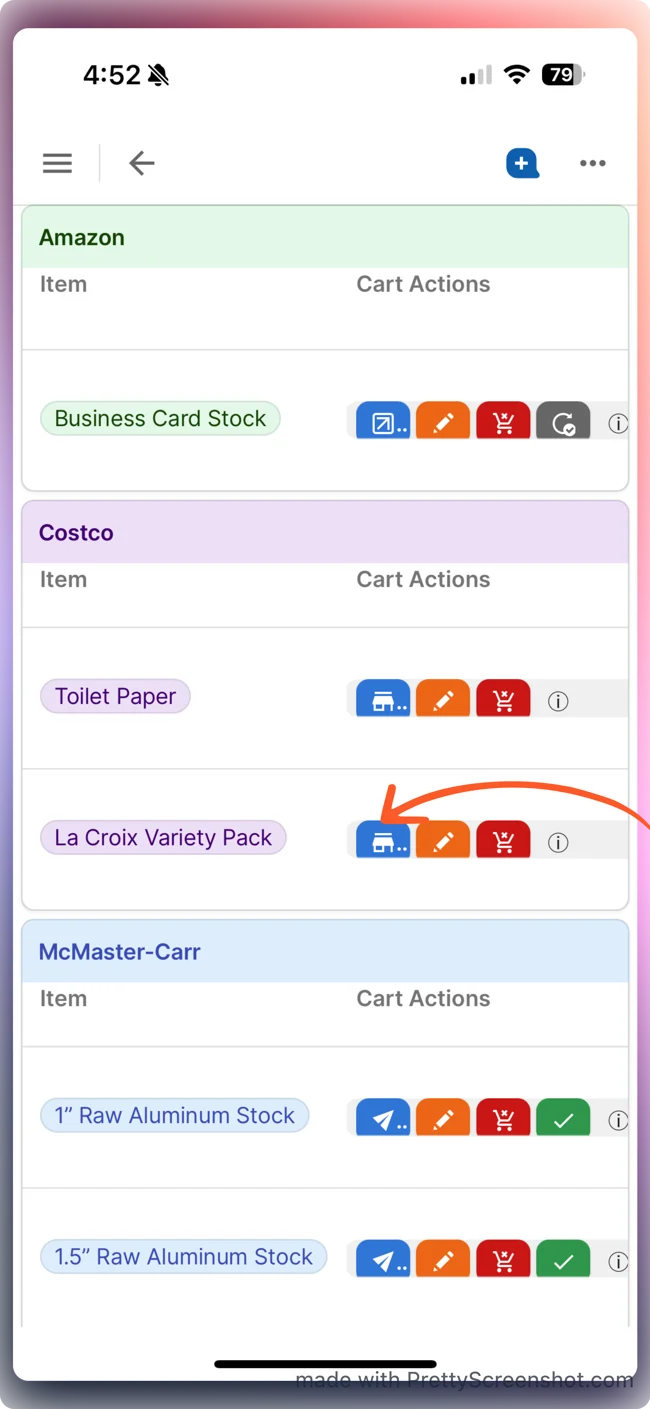
Add the items to your physical cart in-store.
Tap Record Purchased Items to mark them as bought.
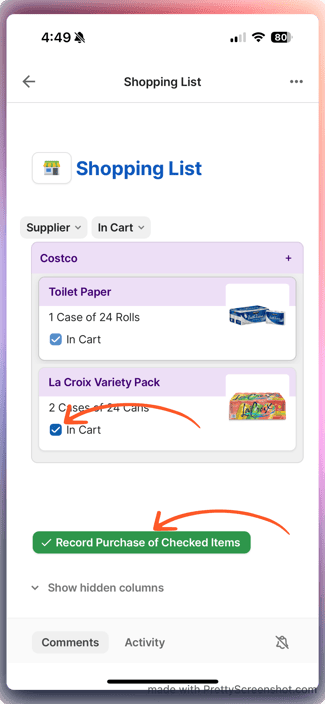
Items will drop out of your order queue.
4. Send an Email Order
Select Email as the order mechanism.
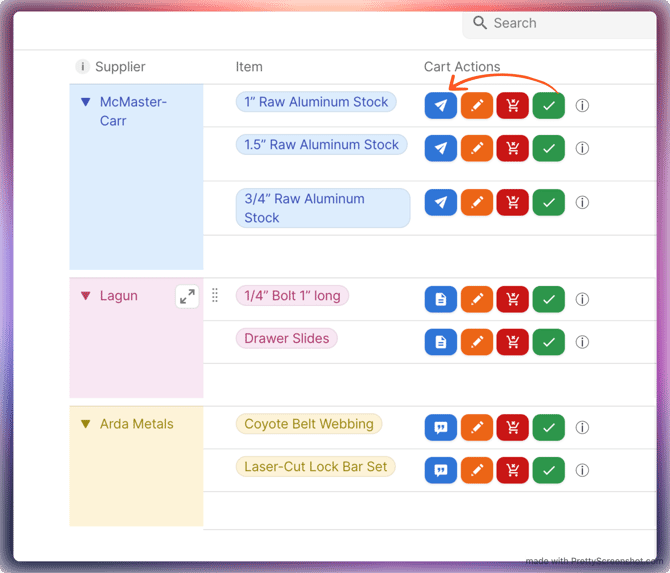
A pre-filled draft will appear.
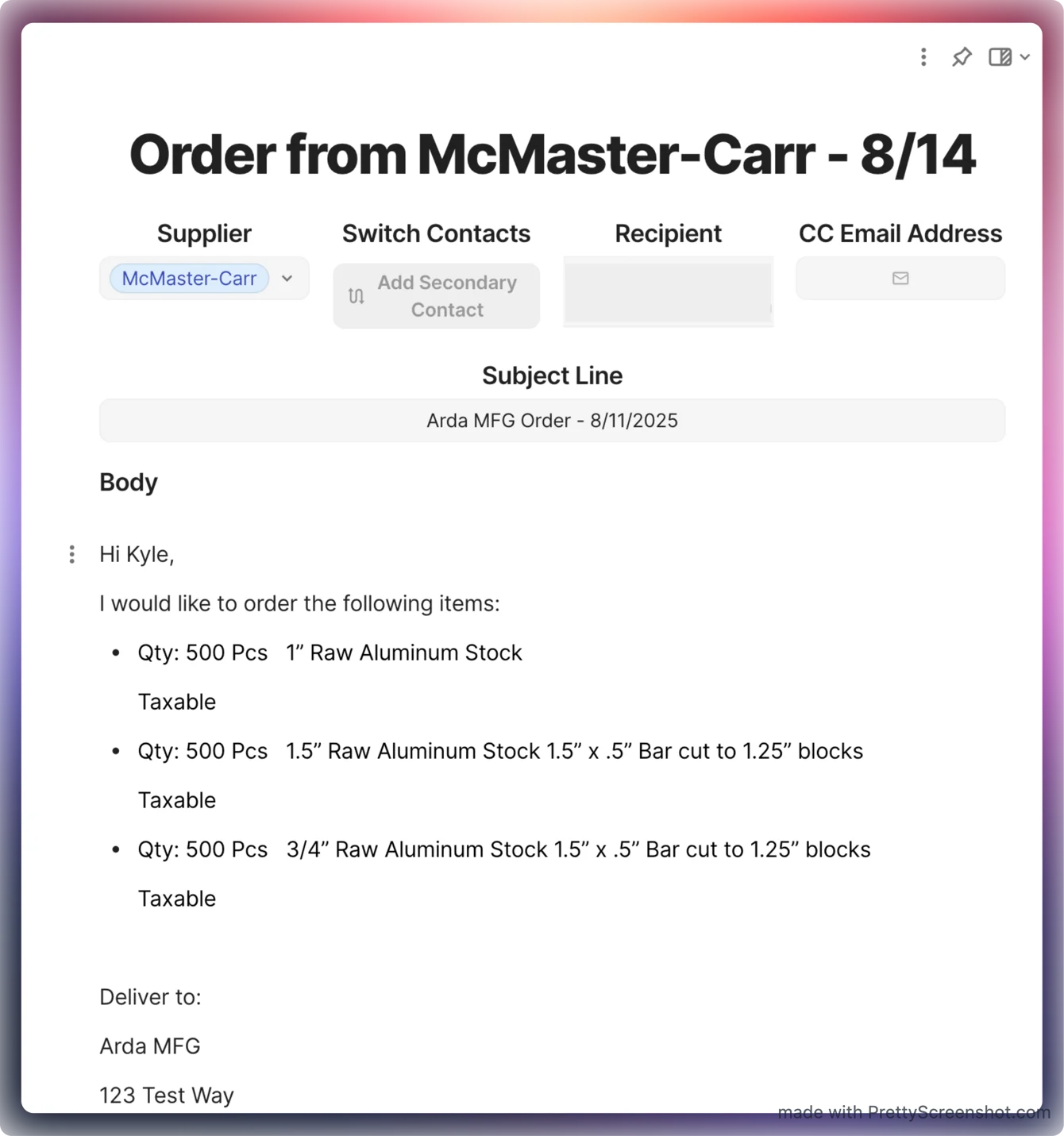
Edit the message if needed, then send it.
Items will be removed from your order queue.
5. Create a Purchase Order (PO)
Update purchase order information including shipping and tax rates as needed(optional, defaults can be set per supplier).
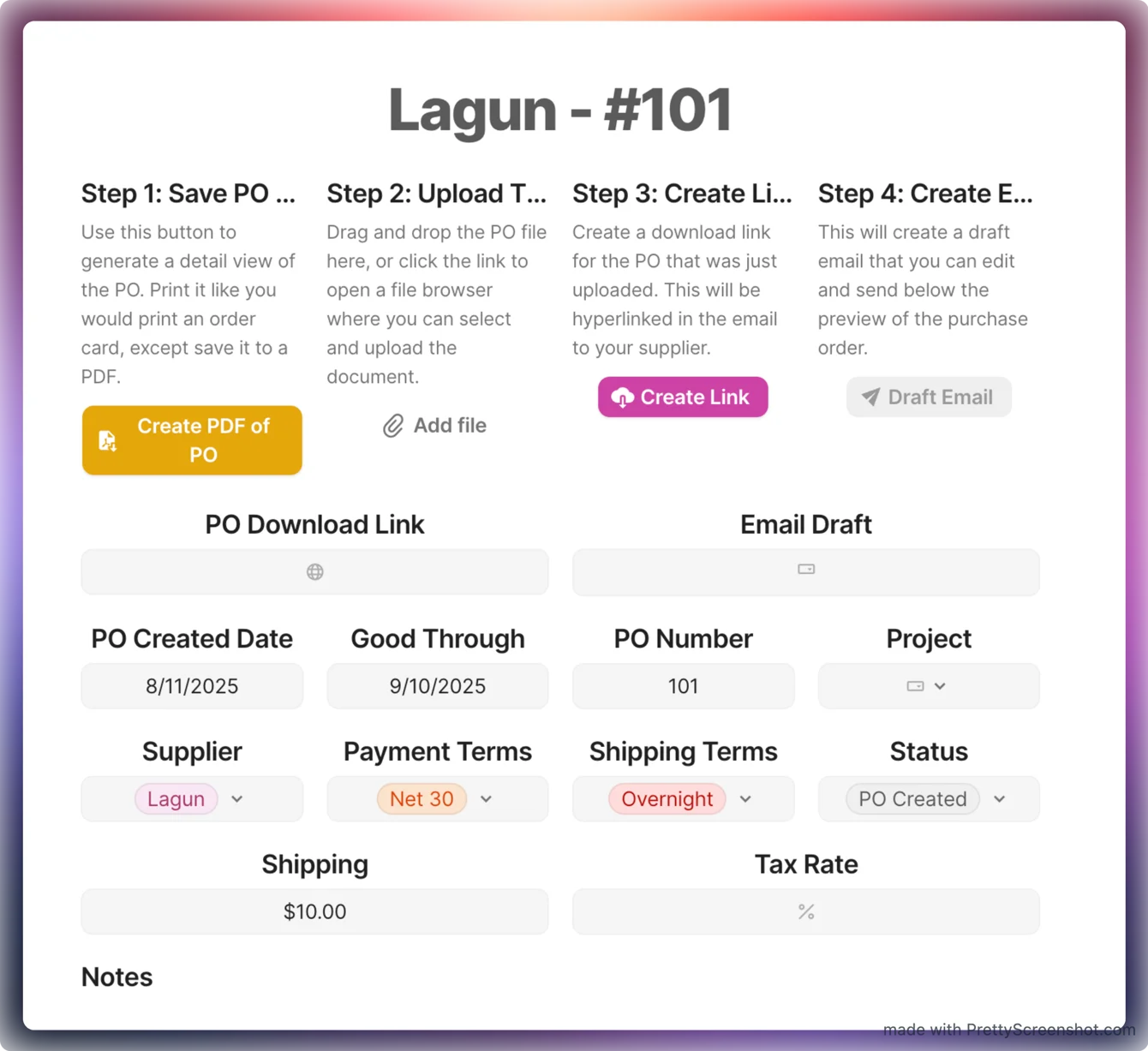
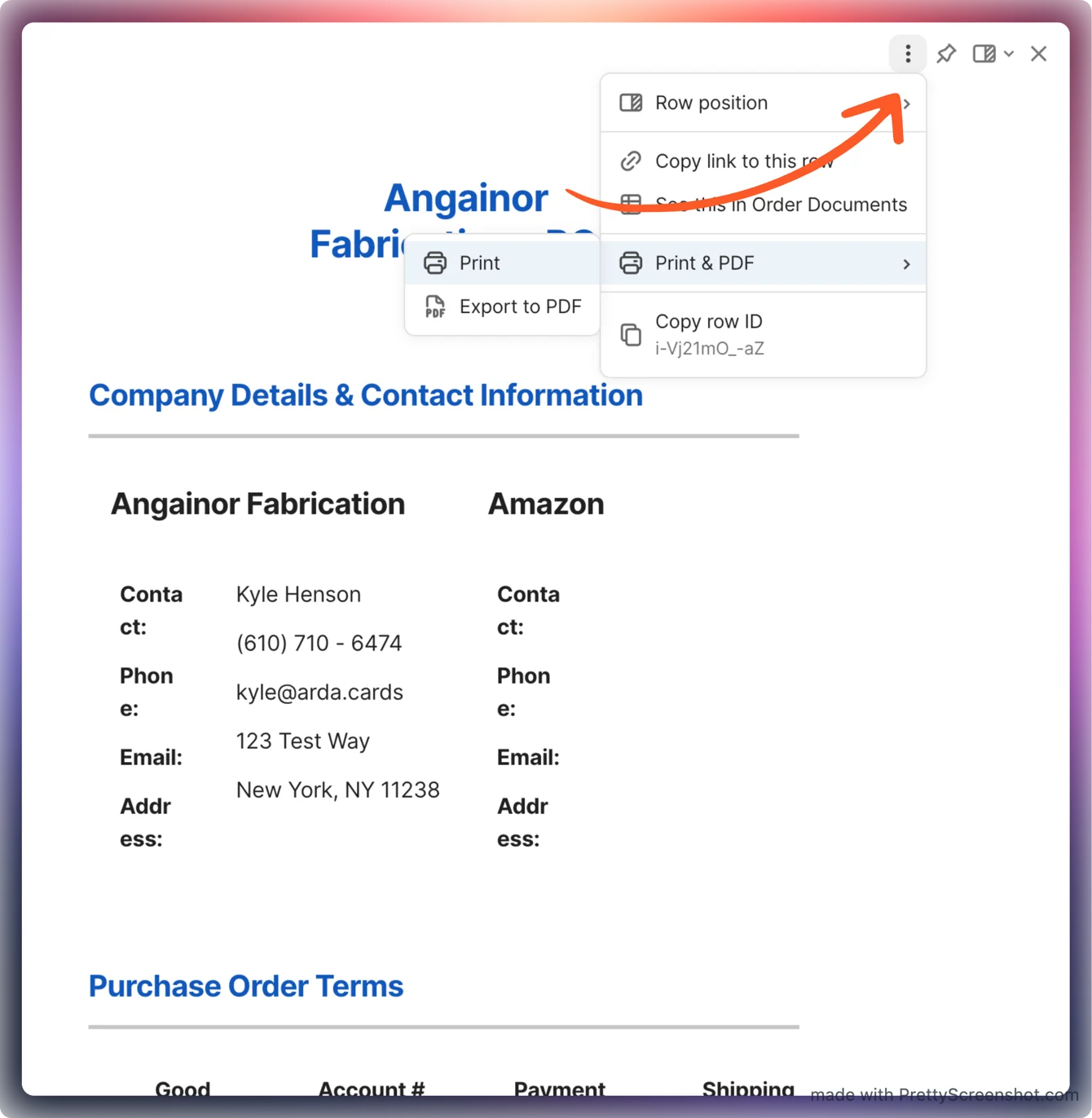
Print the PO as a PDF and save it with a clear title.
Attach the file in the editor, then select Create Link. (Note, you may have to press this more than once). Once the draft email becomes blue, you can select and send the PO to the vendor.
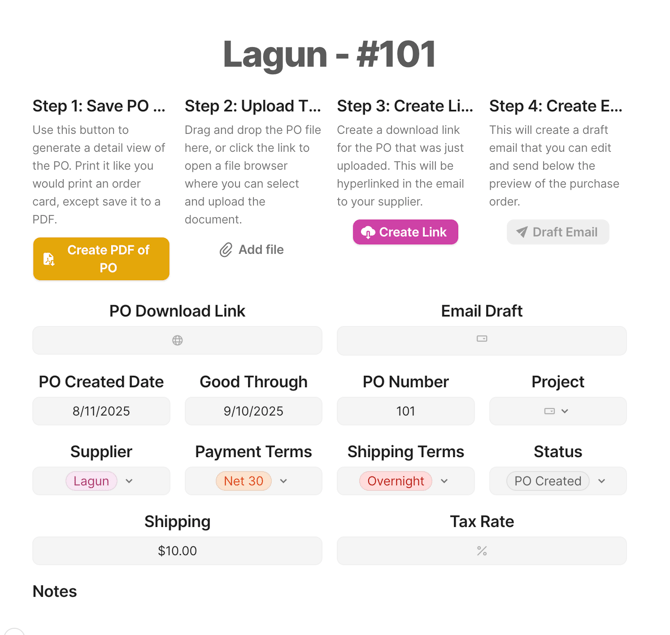
Note: It may take a couple clicks on create link for the Draft Email button to become available. Press it once, if nothing happens wait a second or two then press againThe PO will be included in the email template.
Send the email to the supplier.
6. Request a Quote
Select Request for Quote.
Edit the pre-filled email template if needed.
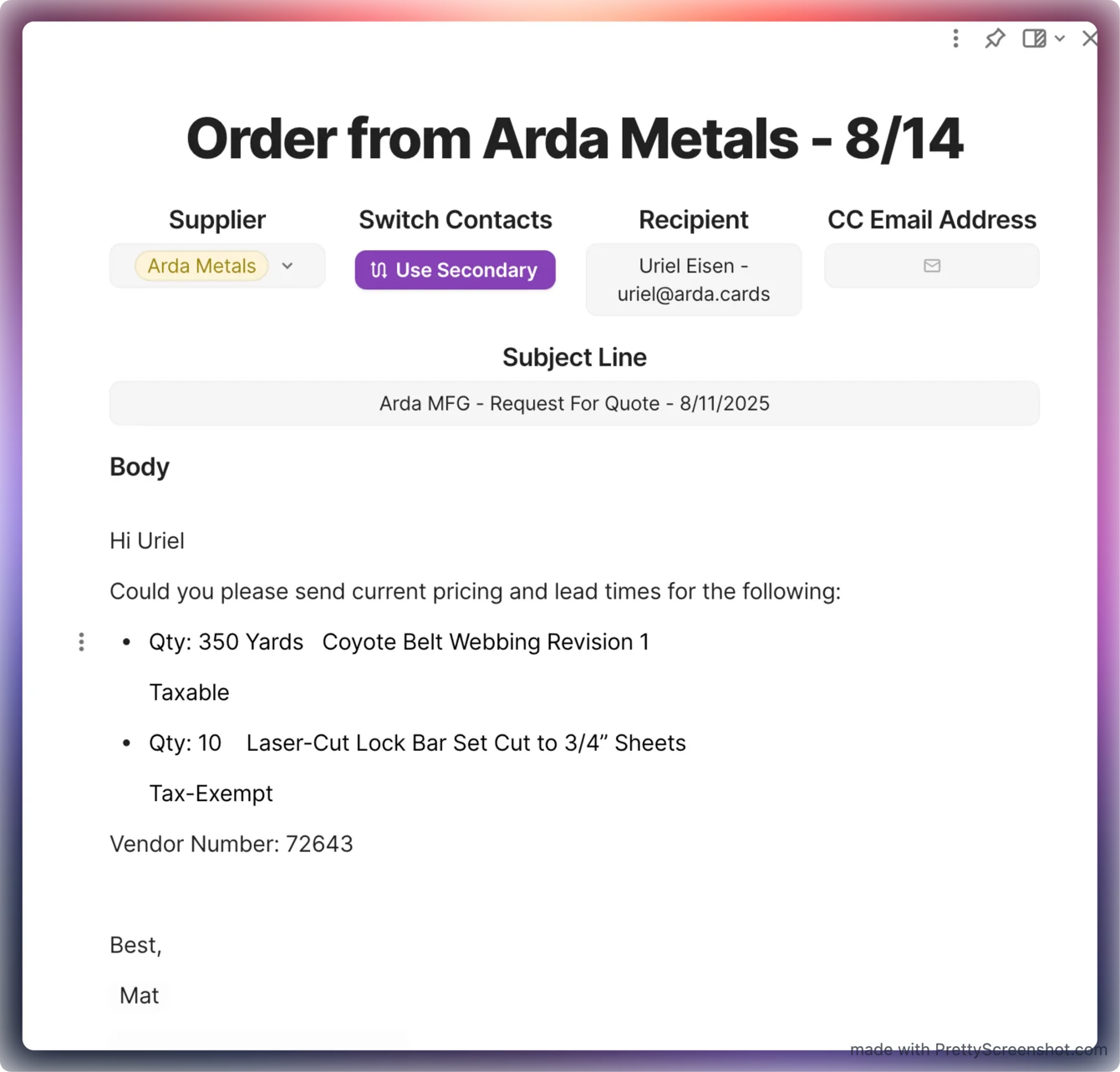
Send it to the supplier.
Depending on whether you complete the order through PO or Email
For POs: Once sent, the system marks them complete automatically.
For email orders: Manually click the check mark to remove them.
Summary
You’ve now learned how to:
Place online orders
Record in-store purchases
Send email orders
Generate and send POs
Request quotes and complete orders
Congratulations you've spent 90% less time to complete your orders then you would have without Arda